
Login
You can log in to the platform if either of these types of login is enabled:
- Normal Login
- Active Directory Support
- Normal Login
To access and login into VOD:
Open your browser and enter the URL for the application.
NOTE: The URL is in this format: HTTPS://<HostName>/VenioWeb/OnDemand
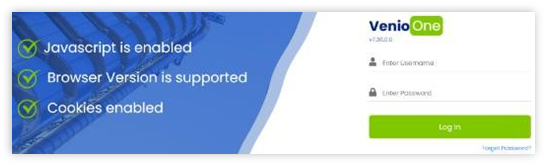
The Login dialog will be displayed.
Enter the username and password.
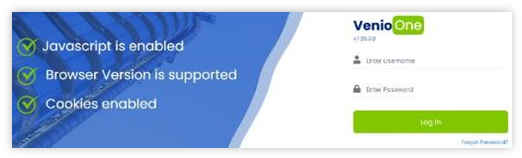
Click the login button.
UserwillbedirectedtoTwo Factor Authentication page if it is enabled. If not, the user will be directed to the Case Launchpad.
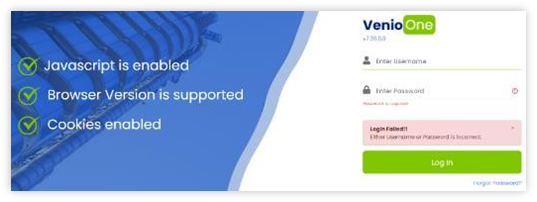
When an invalid Username/Password is provided, you will receive a Login Failed notice.
- EULA Acceptance Screen and Open Source Software (OSS) License
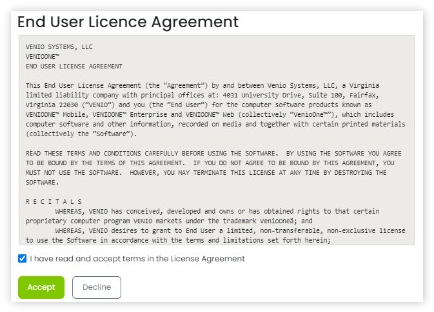
When a new user clicks the Log in button, the End User License Agreement acceptance dialog is displayed (as shown below). The Accept button is enabled only after the “I have read and accept terms in the License Agreement” option is checked.
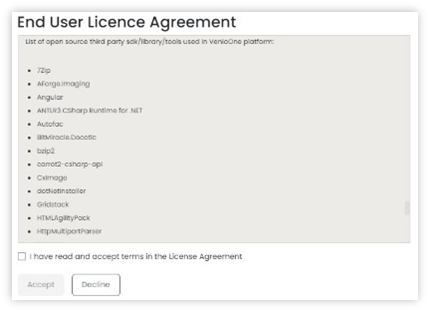
Additionally, a link for the Open Source Software license is available for every user on initial login at the end of the EULA dialog. Click the link to find the list of free and open-source third-party SDKs/libraries/tools used in the VenioOne platform.
After the Accept button is clicked, the user will have access to VOD and the screen will not be shown during the next login.
- Two Factor Authentication (2FA)
2FA is used for security purposes. If 2FA is enabled, after entering your login credentials, you will receive an email containing an authentication code, which will be required to complete a secured login to VOD.
Within the 2FA dialog, you will have the option to have the code remembered for 30 days by selecting Do not ask on this computer for the next 30 days. After entering the verification code, click the Verify button to log in.
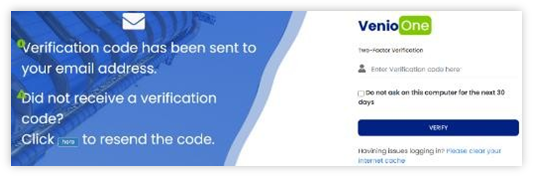
NOTE: If issues are encountered, click the here button to resend the verification code or you may want to try clearing the browser’s cache.
- Enabling/Disabling 2FA
The 2FA feature is enabled or disabled from the VenioOne Desktop Console.
Login to the Desktop Console.
On the Administration tab, click the Login Settings button.
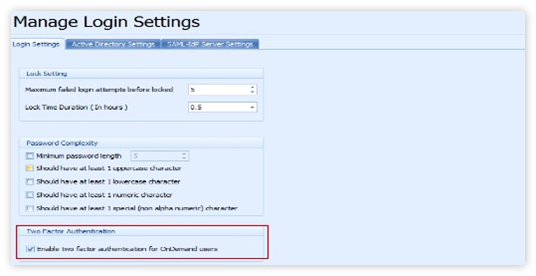
Manage Login Setting dialog will be displayed.
To disable 2FA, uncheck Enable two-factor authentication for OnDemand users. Click the Save button.
- Active Directory Support Enabled
The personal user login credentials may be used if Active Directory Support is enabled in VenioOne’s login settings. If Active Directory Support is enabled, then the Windows Security dialog will be displayed for user login.
Enter your AD domain Username and Password. Click Ok.
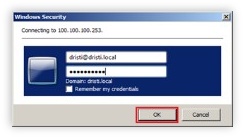
Notificationofsuccessfulauthentication will display the AD URL.

- Reset the Password
Click the Forgot Password link.
Alinkwillbeaddedto the login dialog to reset the password. For AD, this is not displayed.
Enter the username and click the Send Password button.
A message will display indicating that an email will be received with the password reset link.
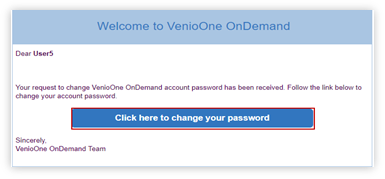
Click here to change your password button.
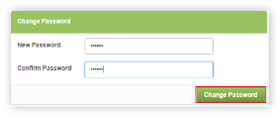
Change Password dialog will be displayed.
Enter a valid password in both fields and click the Change Password button.
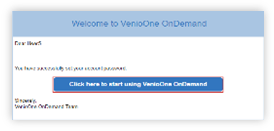
Userwillreceiveanemailconfirminga a successful password reset.
Click the link in the email to access the VOD login page.
Logout
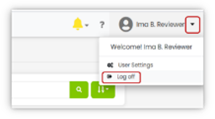
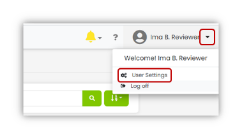
To log out of VOD, click the arrow next to your username in the top right corner of the page, and select Log off to sign out.
Change User Password
It would help if you were signed in to change the password.
Click the arrow next to your username in the top right. Click User Settings
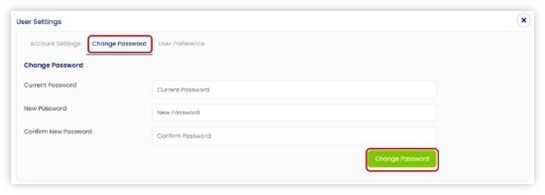
The User Settings dialog will be displayed.
Click the Change Password tab.
Enter the old and new passwords in the indicated fields. Then, click the Change Password button.
Comments
0 comments
Please sign in to leave a comment.