
Problem
How do I enable DTC?
Resolution
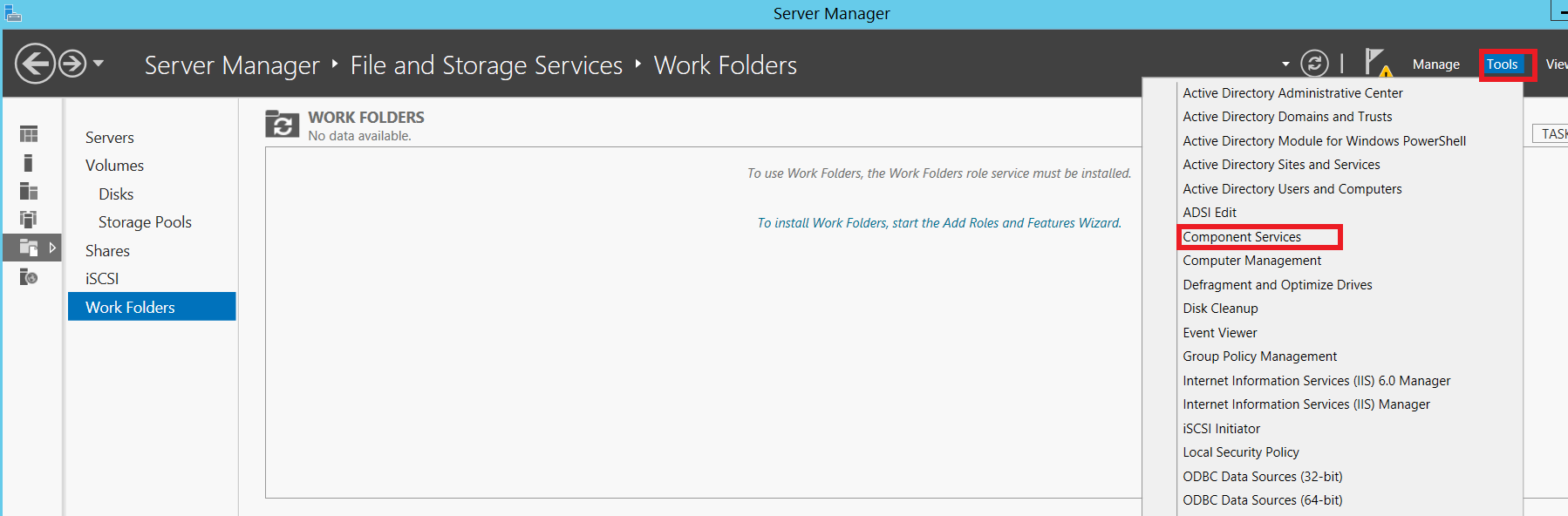
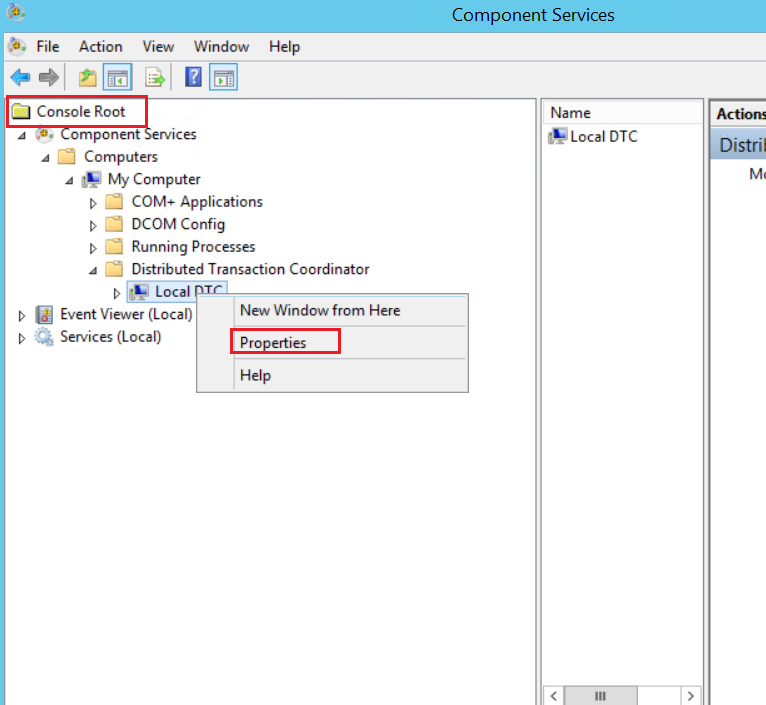
Navigate to Server Manager>>Component Services>>Computers>>My Computer>>Distributed Transaction Coordinator>>Local DTC
Right click on the properties>>Security
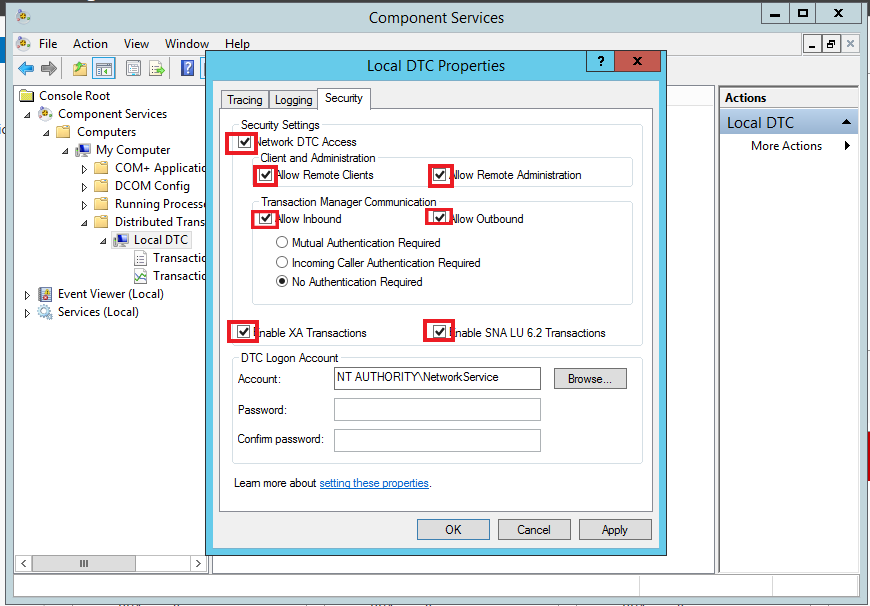
On security settings make sure the following are checked:
- Network DTC Access
- Allow Remote Clients
- Allow Remote Administration
- Allow Inbound
- Allow Outbound
- Enable XA Transactions
- Enable SNA LU 6.2 transactions
What issues occurs when DTC is not enabled?
When SQL server and IIS are not on different servers and also when Project Databases and VenioPCD are on different servers, issues such as review layout not saved or not enabled might occur.
Therefore enabling DTC will resolve this issue. Also we need to add FIREWALL Rules to Allow the Traffic In and Out. The following steps will create Inbound rule.
-
Open Windows Firewall (run as administrator) and select Advanced Settings on the left.
Or, In Server Manager, select Tools, and then select Windows Firewall with Advanced Security.
-
Right click Inbound Rules, and select New Rule.
-
In the wizard:
- Select Program, and select Next.
- Set the program path to
%SystemRoot%\system32\msdtc.exe, and select Next. - Allow the connection, and select Next.
- Make sure Domain is selected, and select Next.
- Enter any name, such as MSDTC, and select Finish.
-
Complete the wizard, and close Windows Firewall.
Same steps for creating OutBound Rules
-
Right click Outbound Rules, and select New Rule.
-
In the wizard:
- Select Program, and select Next.
- Set the program path to
%SystemRoot%\system32\msdtc.exe, and select Next. - Allow the connection, and select Next.
- Make sure Domain is selected, and select Next.
- Enter any name, such as MSDTC, and select Finish.
-
Complete the wizard, and close Windows Firewall.
Comments
0 comments
Please sign in to leave a comment.